What to Do Immediately When You Notice a Failing Hard Drive
Quick answer
The moment you suspect a failing hard drive, stop using it, immediately back up your most important files to a separate device, and avoid running repair tools if you hear clicking or grinding. If the failure is mechanical, power down and contact a professional recovery service to prevent permanent data loss.
Key takeaways
- Stop using the drive right away to avoid overwriting recoverable data.
- Copy your irreplaceable files first, before attempting any repair.
- Clicking or grinding noises usually signal mechanical failure, so power down and call a pro.
- Never run repair tools or attempt physical DIY fixes on a physically failing drive.
- A 3-2-1 backup routine is the best long-term protection against data loss.
A failing hard drive is one of those problems where the first few minutes matter more than anything you do later. Every extra hour you keep a dying drive running can turn recoverable files into lost ones. This guide walks you through exactly what to do the moment you notice trouble, how to tell a minor hiccup from a serious mechanical failure, and when it is smarter to stop and call a professional.
The Immediate Steps to Take With a Failing Hard Drive
The single most important thing to do is stop using the drive and back up your critical files before anything else. Continued use is the leading cause of turning a partly readable drive into a total loss, because the operating system keeps writing to the disk and can overwrite the very data you want to save.
Stop using the drive right away
As soon as you notice odd behavior, close programs, stop saving new files, and avoid streaming, downloading, or installing anything. Every write operation risks further damaging fragile sectors. If the drive is your main system drive, and the computer is struggling, that is your cue to prepare for a shutdown rather than pushing through.
Back up critical files before anything else
Your first move should be to copy irreplaceable data to a healthy external drive or to cloud storage. Do not organize, sort, or clean up. Grab the essentials first: tax records, photos, work documents, and anything you cannot recreate. You can worry about the rest once the important material is safe.
When to power down vs. keep running
This is the key judgment call. If the drive is quiet and simply slow or throwing occasional errors, keep it running just long enough to copy your files. If you hear clicking, grinding, or buzzing, power down immediately. Those sounds usually indicate a mechanical fault, and continuing to run the drive can cause the read/write heads to scratch the platters, permanently destroying data.
The clicking test
A repetitive click or grind is a red flag. If you hear it, stop trying to back up and power the drive off. At that point, software recovery can do more harm than good, and a professional lab gives you the best chance at a full recovery.
How to Recognize the Warning Signs of Hard Drive Failure
Most hard drives give warning before they fail, and learning to read those signs buys you time to react. The clearest signals fall into four categories: strange noises, system instability, sluggish file access, and built-in health alerts.
Unusual noises (clicking, grinding, buzzing)
Mechanical hard drives should hum quietly. A rhythmic clicking (often called the click of death), grinding, or loud buzzing points to a hardware problem with the platters, motor, or read/write heads. These are the most urgent warning signs because they signal physical damage that gets worse with every second of operation.
Frequent freezes, crashes, or blue screens
If your computer keeps freezing during file access, crashing at random, or showing blue screen errors, the drive may be struggling to read data. Occasional crashes can have many causes, but a pattern tied to opening files, booting, or saving strongly suggests the storage is failing.
Slow file access and disappearing files
A drive that suddenly takes far longer to open folders or copy files is often reading and re-reading bad sectors. Files that vanish, become corrupted, or refuse to open are another warning sign. If folders show scrambled names or empty contents that used to be full, treat it as a serious signal.
SMART warnings and failure alerts
Modern drives include Self-Monitoring, Analysis, and Reporting Technology (SMART). When your system displays a message such as "SMART failure predicted" or "backup and replace," it indicates the drive is detecting internal problems. Do not dismiss it. A SMART warning is often your final notice before a bigger failure.
What to Do the Moment You Notice a Problem
Follow a calm, ordered process rather than reacting piecemeal. The goal is simple: save what matters most in the safest order, without further stressing the drive.
-
Assess whether the drive is still readable
Can you open folders and files without long hangs or errors? If yes, and the drive is quiet, you likely have a logical or early-stage issue and time to back up. If it clicks, grinds, or is barely responsive, skip straight to powering down and calling a professional. -
Prioritize and copy irreplaceable data first
Copy your most valuable files to a separate healthy drive immediately. Photos, documents, and anything unique come first. Do not waste the drive's remaining life copying software you can reinstall. -
Use disk imaging tools for full backups
If the drive is stable enough, create a full disk image (a sector-by-sector copy) instead of copying files one at a time. Imaging reads the drive once and works from that copy, reducing stress on failing hardware and capturing everything in a single pass. -
Avoid running repair tools on a physically failing drive
Tools that check and repair the file system can help with logical errors, but on a mechanically failing drive they force heavy read and write activity that can accelerate the failure. If you suspect physical damage, do not run them.
What NOT to Do With a Failing Hard Drive
Knowing what to avoid is just as important as knowing what to do. A few common instincts actually make recovery harder and can turn a partial loss into a total one.
| Do these | Avoid these |
|---|---|
| Stop writing to the drive immediately | Repeatedly rebooting or power cycling the machine |
| Copy irreplaceable files to a separate device first | Opening the drive casing or attempting DIY physical repair |
| Create a disk image if the drive is stable | Running repair tools on a physically failing drive |
| Power down at the first sign of clicking or grinding | Freezing the drive or other internet home remedies |
| Contact a professional for mechanical failures | Ignoring SMART warnings and backup alerts |
Don't repeatedly reboot or power cycle
Each startup puts a heavy load on the drive. If it is struggling, repeated reboots can push failing components past the point of no return. Turn it on once, do your backup, and leave it be.
Don't attempt DIY physical repairs
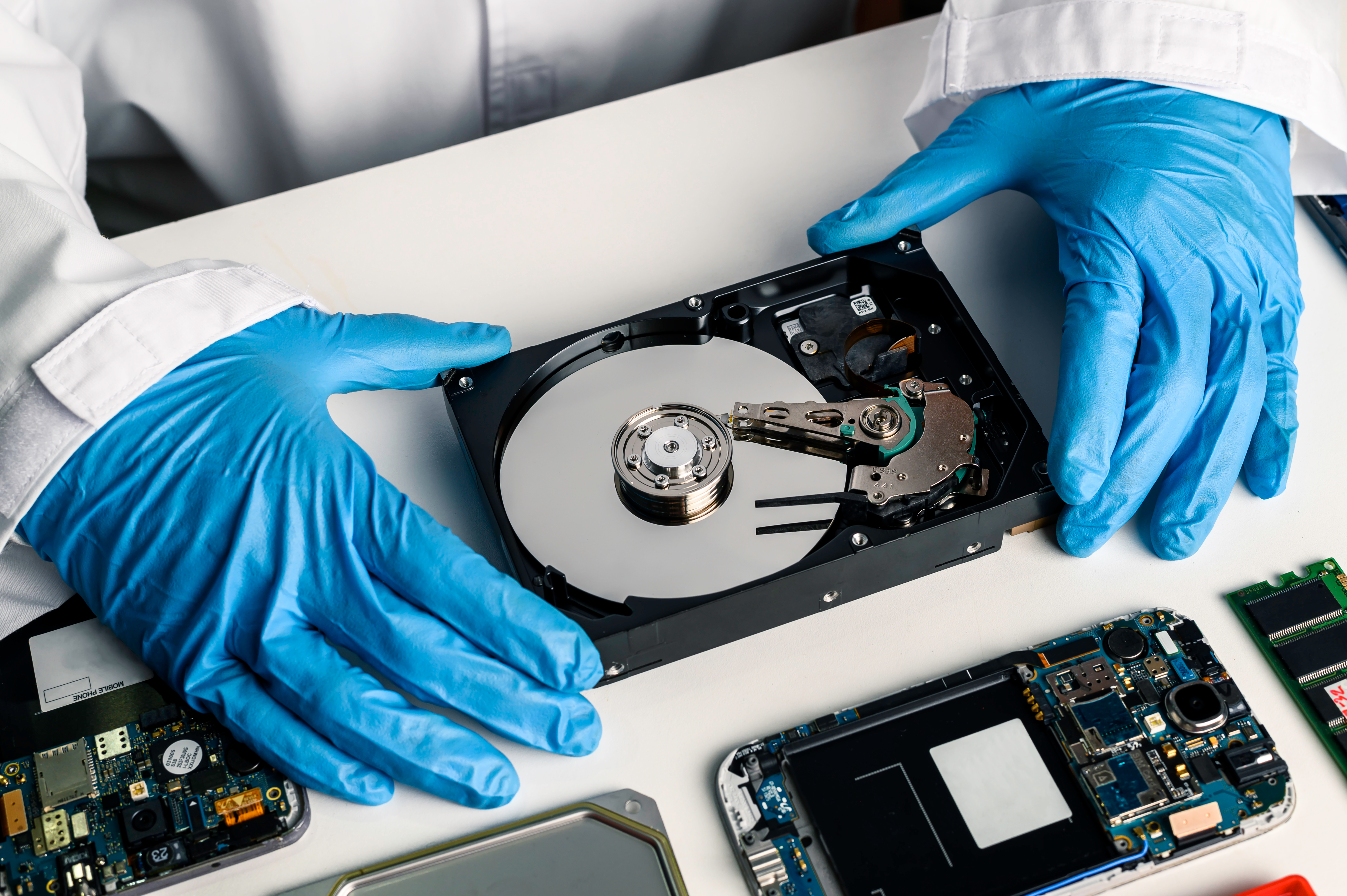
Opening a hard drive outside a certified cleanroom exposes the platters to dust and static, which can ruin the surface almost instantly. Popular home fixes like putting a drive in the freezer are unreliable and often make professional recovery harder or impossible.
Don't ignore backup warnings
A SMART alert or repeated backup prompt is the drive telling you it is on borrowed time. Treat every warning as your signal to back up now, not later.
When to Call a Professional Data Recovery Service
Call a professional the moment you suspect physical failure or when the data is critical, and you are not confident in your next step. A recovery lab has tools and cleanroom environments that DIY methods simply cannot match, and getting help early protects your best chance of full recovery.
Signs the failure is mechanical, not logical
Mechanical failures announce themselves with noise: clicking, grinding, or a drive that repeatedly spins up and down. The drive may not appear in your system at all, or it may appear and then vanish. Logical failures, by contrast, usually let the drive be recognized but show corrupted files, missing partitions, or file system errors. Mechanical damage is a stop-and-call situation; logical issues sometimes allow safe backup first.
What to expect from a recovery lab
A reputable lab will evaluate the drive, tell you whether recovery is possible, and give you a quote before proceeding. Physical recoveries are performed in a controlled cleanroom where damaged parts can be repaired or bypassed long enough to image the data. Turnaround and cost depend on the severity of the damage.
How to preserve the drive before handing it over
Keep the drive powered off, cool, and dry. Do not shake it, open it, or run more software against it. Place it in an antistatic bag if you have one, and cushion it well for transport. The less you handle a physically damaged drive, the more a lab can recover.
How to Prevent Future Hard Drive Failures
The best defense against a failing drive is preparing before it happens. Backups and monitoring mean that even a total failure becomes a minor inconvenience rather than a disaster.
Maintain a 3-2-1 backup routine
Keep at least three copies of your data, on two different types of media, with one copy stored offsite or in the cloud. This rule means no single failure, theft, or accident can wipe out everything. Automate it so you never have to rely on memory.
Monitor drive health regularly
Check SMART status periodically with free monitoring tools, and pay attention to reallocated sector counts and rising error rates. Watching those trends lets you replace a drive on your schedule instead of during an emergency.
Replace aging drives proactively
Mechanical drives typically last 3 to 5 years under regular use, though many run longer. If a drive is aging, showing early signs of wear, or storing critical data, replace it before it fails rather than after. Proactive replacement is far cheaper than recovery.
Need hands-on help in Palo Alto?
If your drive is clicking, refusing to boot, or throwing failure warnings, do not risk your data with guesswork. Call CaliPhonia – Phone & Computer Repair at (650) 666-5919 for phone and computer repair and diagnostics. Getting to us early gives your files the best chance.
Meet the passionate team at CaliPhonia – Phone & Computer Repair, where affordable computer repairs meet expert craftsmanship. Situated in the heart of Silicon Valley, our family-owned workshop boasts over a decade of experience in cell phone and computer repairs, micro-soldering, and wireless networks. From virus and spyware removal to home and business network installations, our skilled experts offer free in-office diagnostics and delivery within a 20-mile radius. Let us breathe new life into your devices today. Contact us and experience the CaliPhonia – Phone & Computer Repair difference.
Frequently asked questions
Q: What is the most common cause of hard drive failure?
For mechanical hard drives, the most common causes are wear on moving parts, physical shock or dropping, overheating, and power surges. Firmware faults and bad sectors also play a role. Regardless of the cause, a 3-2-1 backup routine is the best protection against data loss when a drive fails.
Q: Can data be recovered from a failing hard drive?
Often yes, especially if you stop using the drive immediately. Logical failures can frequently be recovered with software, while mechanical failures usually require a professional cleanroom lab. The odds of full recovery are best when you avoid running repair tools and stop the drive as soon as you hear clicking or grinding.
Q: How long does a hard drive last before it fails?
Most mechanical hard drives last around three to five years under normal use, though some run much longer and others fail early. Solid state drives have different wear patterns. Because lifespans vary widely, health monitoring and regular backups matter more than any fixed number of years.
Q: Should I keep a failing hard drive running or turn it off?
It depends on the symptoms. If the drive is quiet and simply slow, keep it running just long enough to back up your critical files. If you hear clicking, grinding, or buzzing, power it down immediately, because those sounds signal mechanical damage that worsens with continued use.
Q: How do I know if my hard drive failure is physical or logical?
Physical failures usually make noise (clicking or grinding), cause the drive to disappear from your system, or make it spin up and down repeatedly. Logical failures typically let the drive be recognized but show corrupted files, missing partitions, or file system errors. Physical failures call for a professional; logical ones may allow a safe backup first.
For directions, use this helpful Google Maps link or get step-by-step navigation via Get Directions.
Disclaimer: This article is general information, not a guarantee of data recovery, and outcomes vary with the type and severity of drive failure.