What Tools Are Recommended to Recover Corrupted Partitions?
Meet the passionate team at CaliPhonia, where affordable computer repairs meet expert craftsmanship. Situated in the heart of Silicon Valley, our family-owned workshop boasts over a decade of experience in cell phone and computer repairs, micro-soldering, and wireless networks. From virus and spyware removal to home and business network installations, our skilled experts offer free in-office diagnostics and delivery within a 20-mile radius. Let us breathe new life into your devices today. Contact us and experience the CaliPhonia difference.
Introduction to Corrupted Partition Recovery
When a partition on your hard drive or SSD becomes corrupted, the consequences can range from minor file access issues to complete data loss. Whether caused by unexpected power failures, file system errors, malware attacks, or hardware malfunctions, a damaged partition can disrupt both personal and professional workflows. At CaliPhonia – Phone & Computer Repair, our team specializes in diagnosing and resolving partition failures with precision and care. In this blog, we’ll explore the leading tools and techniques used to recover corrupted partitions, explain when and how to use them, and offer best practices to safeguard your data moving forward.
Common Causes of Partition Corruption
Before diving into the tools, it’s important to understand why partitions fail in the first place:
1. Power Interruptions
When a device loses power in the middle of disk activity, the file system may be left in an inconsistent state:
- Incomplete Writes: Critical structures-like the master boot record (MBR) or partition table-may only be partially updated, so on restart the system can’t locate your data.
- Journaling vs. Non-Journaling File Systems: Modern journaling file systems (e.g., NTFS, ext4) log pending changes to help recover from crashes. Non-journaling systems (e.g., FAT32) are far more vulnerable to sudden power loss.
- Mitigation: Use an uninterruptible power supply (UPS) for desktops and servers; enable file-system journaling or write-cache protection on external drives.
2. Software Bugs
Errors in disk utilities or operating-system components can silently corrupt partitions:
- Faulty Partitioning Tools: A glitch in a partition manager (e.g., third-party resizing software) may miscalculate offsets or overwrite adjacent sectors.
- Driver and Kernel Bugs: A storage‐driver crash during low‐level operations can leave metadata half-written-rendering the partition table unreadable.
- Firmware Issues: Hard-drive or SSD firmware with bugs can mishandle wear leveling or remapping, leading to phantom bad sectors.
- Mitigation: Always use well-tested, up-to-date utilities; back up partition tables with tools; apply firmware updates from your drive manufacturer.
3. Malware and Ransomware
Sophisticated threats can deliberately target partition structures:
- Partition-Level Encryption: Some ransomware strains encrypt raw partitions or overwrite MBR code, preventing any OS from mounting them.
- Header Overwrites: A malicious script may corrupt GUID Partition Table (GPT) headers or delete critical EFI entries to block recovery.
- Stealth Rootkits: Advanced rootkits can hook disk I/O and silently subvert read/write calls, introducing subtle metadata damage that’s hard to detect.
- Mitigation: Employ real-time antivirus/antimalware guards; maintain offline, immutable backups; enable Secure Boot and UEFI protections where possible.
4. Physical Wear and Media Degradation
Over time, storage media simply wears out-especially flash and magnetic disks:
- Flash Memory Fatigue: SSDs use NAND cells with finite write cycles. As cells fail, the controller remaps sectors; if it runs out of spare cells, you’ll see bad‐sector errors at the partition level.
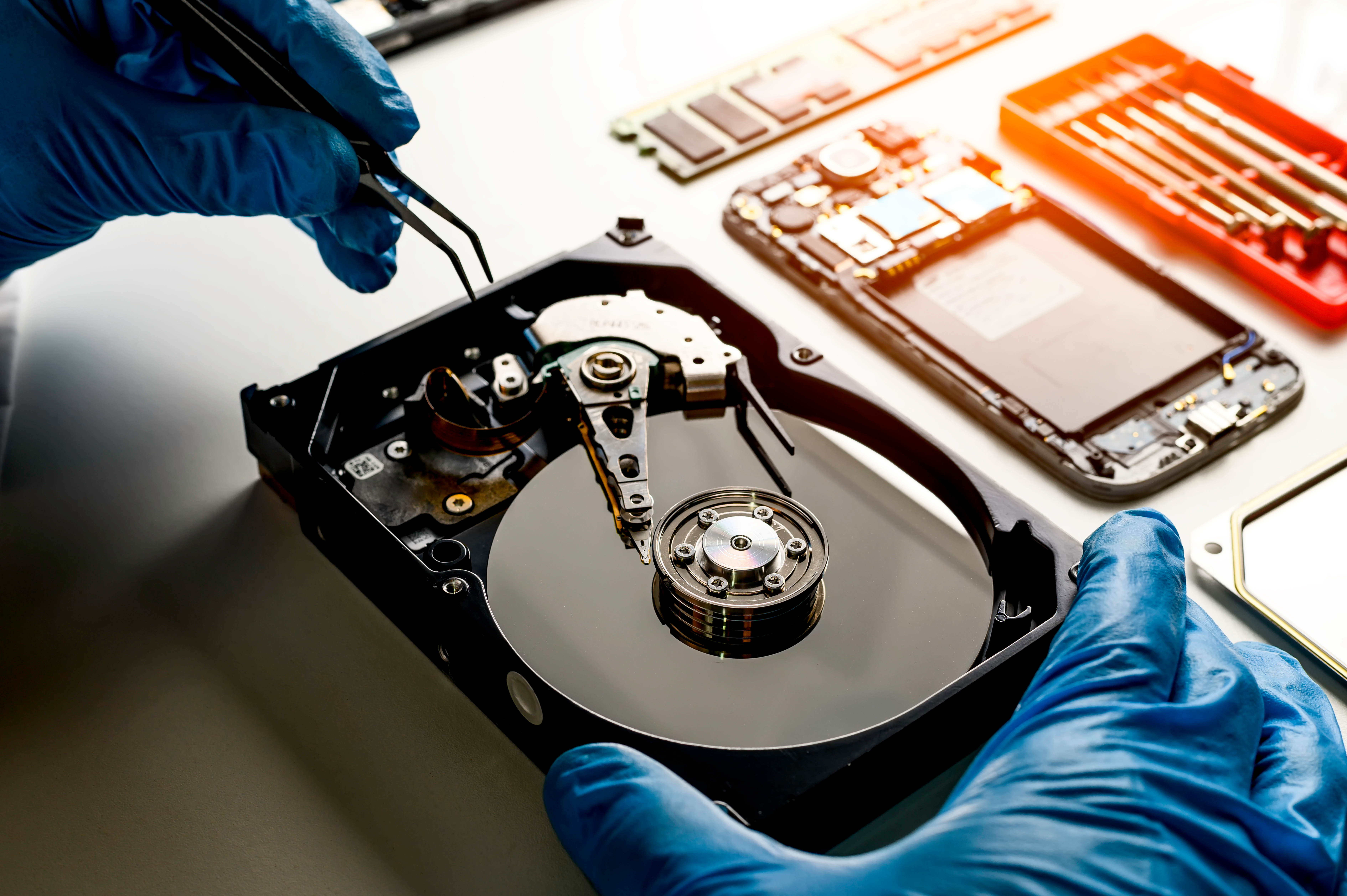
- Magnetic Platter Wear: HDDs can develop head crashes, stiction, or surface corrosion, leading to unreadable tracks and partition table damage.
- Thermal and Mechanical Stress: Extreme temperatures or physical shocks can warp platters or fracture solder joints, resulting in intermittent partition visibility.
- Mitigation: Monitor SMART attributes (e.g., wear leveling count, reallocated sector count); replace aging drives before they reach end-of-life; avoid exposing disks to extreme conditions.
Recognizing the underlying cause helps determine which recovery approach is most effective.
Top Tools for Recovering Corrupted Partitions
1. TestDisk
Overview: TestDisk is an open-source utility renowned for recovering lost partitions and rebuilding boot sectors.
-
Key Features:
- Detects and restores deleted partitions across various file systems (FAT, NTFS, ext).
- Repairs partition tables and MBR/GPT structures.
- Command-line interface for granular control.
- When to Use: Ideal for experienced users comfortable with text-based tools and when the partition table itself is damaged.
Data recovery approaches with Caliphonia Palo Alto often begin with TestDisk for its reliability in diagnosing partition table inconsistencies and rewriting vital headers.
2. EaseUS Partition Recovery
Overview: EaseUS offers a user-friendly wizard for retrieving lost or deleted partitions on Windows systems.
-
Key Features:
- Guided recovery process with clear, step-by-step instructions.
- Supports deep scan modes to locate partitions that have been formatted or resized.
- Preview recoverable files before committing changes.
- When to Use: Best suited for less technical users who prefer a graphical interface and need quick results.
Partition repair utilities by Caliphonia Palo Alto frequently include EaseUS when clients require an intuitive tool that balances power with simplicity.
3. MiniTool Partition Wizard
Overview: A versatile disk management suite that combines partition repair with cloning and optimization tools.
-
Key Features:
- Built-in “Partition Recovery” wizard for stepwise scanning.
- Ability to migrate OS, extend partitions, and convert file systems without data loss.
- Comprehensive support for Windows and server environments.
- When to Use: When you need both repair and additional disk-management capabilities under one roof.
Caliphonia Palo Alto on handling damaged partitions often recommends MiniTool for environments where ongoing partition management is essential alongside recovery.
4. Disk Drill
Overview: Disk Drill is known for its straightforward recovery workflow and support for a wide range of storage media.
-
Key Features:
- Quick and deep scan options for discovering lost partitions.
- Recovery Vault technology that logs metadata to speed up future recoveries.
- Preview feature to verify recoverability of files.
- When to Use: Particularly useful for USB drives, external HDDs/SSDs, and memory cards where both file and partition recovery is needed.
File system recovery tips from Caliphonia Palo Alto often include Disk Drill’s Recovery Vault as a preventive measure, capturing metadata before future failures.
Step-by-Step Guide to Recover a Corrupted Partition
-
Assess the Damage
- Use quick diagnostics to gauge the extent of corruption.
- Determine if the partition table is intact or if deeper recovery tools are required.
-
Choose and Deploy the Right Tool
- Minor Table Errors: Start with TestDisk for MBR/GPT repairs.
- Deleted/Formatted Partitions: Use EaseUS or MiniTool for guided scanning.
- Extensive File Loss: Deploy deep-scan features in Disk Drill or R-Studio.
-
Scan and Preview
- Perform a read-only scan to avoid overwriting data.
- Preview recoverable files to confirm the tool’s effectiveness before writing changes.
-
Execute Recovery
- Allow the utility to rewrite partition tables or restore deleted entries.
- For GUI tools, follow on-screen prompts; for CLI tools, carefully enter commands as documented.
-
Verify and Back Up
- Once the partition is accessible, copy critical files to a separate drive immediately.
- Run file integrity checks to ensure no hidden corruption remains.
-
Implement Preventive Measures
- Schedule regular backups and disk health scans.
- Consider imaging your drive periodically using tools like Macrium Reflect or Acronis True Image.
Key Takeaways
- Corrupted partitions can stem from power failures, software bugs, malware, or physical wear.
- Open-source and commercial tools each offer distinct advantages; choose based on your technical comfort and recovery needs.
- TestDisk excels at low-level repairs, while EaseUS and MiniTool provide user-friendly interfaces.
- Disk Drill adds preventive metadata logging to simplify future recoveries.
- Always perform read-only scans first, verify recoverable files before restoring, and back up immediately after success.
Frequently Asked Questions
Q1: Can I recover a partition after formatting?
Yes. Deep-scan features in tools like EaseUS Partition Recovery and Disk Drill can locate traces of the old partition and restore its structure, provided it hasn’t been overwritten.
Q2: Is it safe to use multiple recovery tools on the same drive?
It’s best to stick with one read-only scan per session to avoid accidental overwrites. If one tool fails, disconnect the drive and try another on a fresh session.
Q3: What if my partition table is completely unreadable?
Command-line utilities like TestDisk can rebuild MBR/GPT structures from scratch, but this requires careful adherence to documentation.
Q4: How do I prevent future partition corruption?
Maintain regular backups, use a UPS to guard against power outages, keep your OS and antivirus updated, and monitor disk health with SMART-aware tools.
Q5: Are SSDs less prone to partition issues than HDDs?
SSDs don’t suffer mechanical failures, but they can still incur firmware glitches or cell wear. Both SSDs and HDDs benefit from routine backups and health checks.
Summary
Corrupted partitions can arise from power failures, software bugs, malware or physical wear, risking data loss and workflow disruption. This guide highlights four leading recovery tools-TestDisk for low-level repairs, EaseUS and MiniTool for user-friendly, wizard-driven restores, and Disk Drill for broad media support and preventive metadata logging. It outlines a step-by-step recovery workflow-assess damage, choose the right tool, perform read-only scans, preview results, execute recovery, then verify and back up. Finally, it stresses preventive measures like regular backups, disk health monitoring and UPS protection to minimize future partition failures.
----------------------------------------------------------------------------------------------------------
Remember: Consistent maintenance and backups are your first line of defense against data loss. Invest time in learning your chosen recovery tool’s features and run routine scans to catch early signs of disk degradation.
Disclaimer: This blog is for informational purposes only and does not constitute professional advice. Always consult a qualified data recovery specialist for issues beyond your expertise.